A webinar is clippable when one speaker fills the frame, the sound is clean, and answers are short enough to stand alone. Slide-only recordings give much less to cut. Before your next webinar, set Zoom to record the active speaker and the shared screen as separate videos, and have the host read each question out loud.
Two webinars can run the same hour for the same audience and give you very different numbers of clips. One has a few people taking turns on camera with sharp answers. The other is forty slides and a voice. What separates them is mostly decided before anyone presses record, which is good news: you can change it for the next one.
Clips come from faces, clean sound and short answers. Plan the webinar for all three.
A speaker on camera beats slides
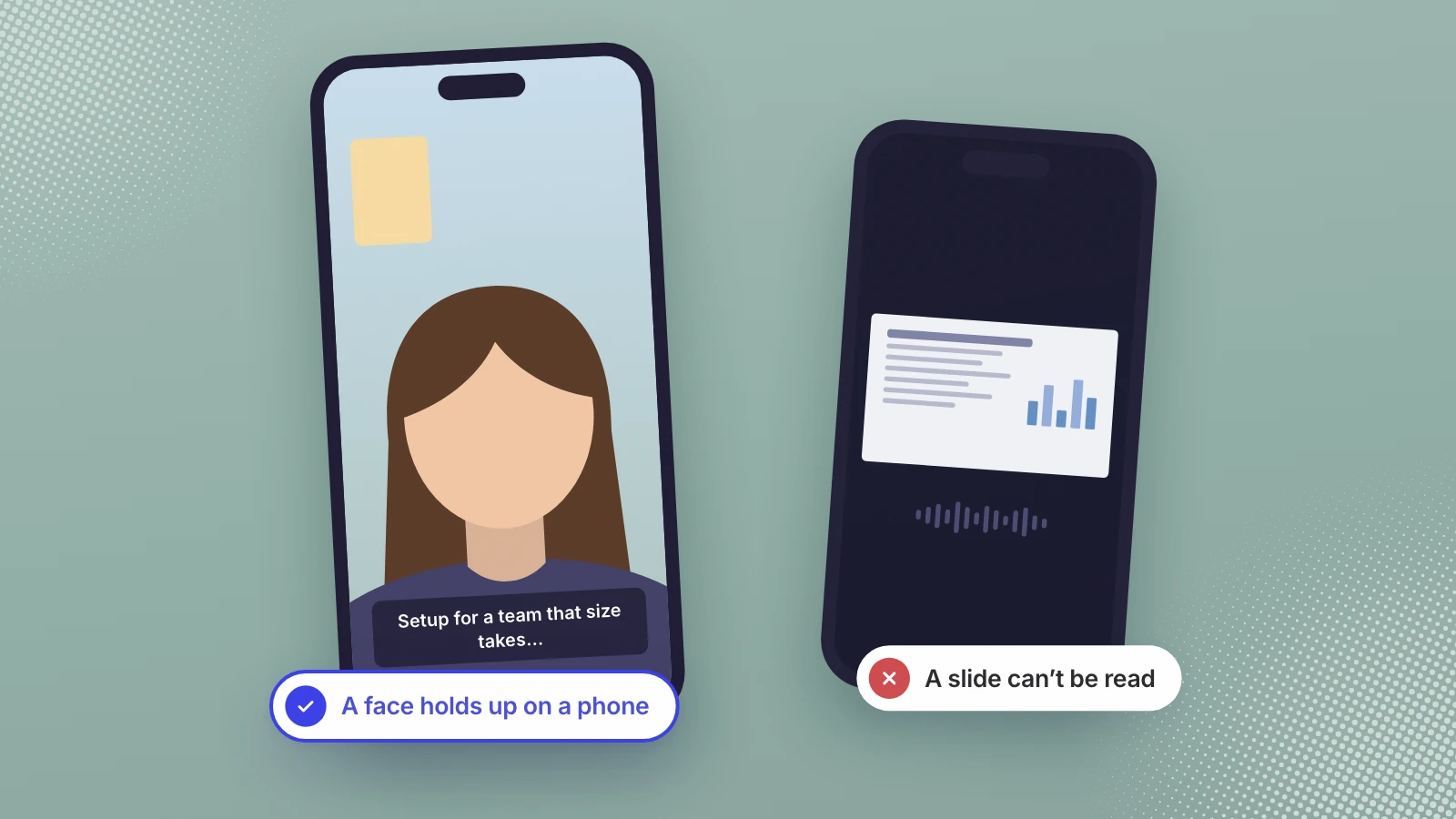
This is the lesson we learned cutting clips at Leo: recordings where one speaker fills the frame cut well, and slide-only recordings give much less to cut. A short clip lives in a vertical feed on a phone. A face talking to camera survives being reframed to that shape. A slide doesn’t. Shrink a dense slide into a vertical frame and the text can’t be read, and with no face there’s nothing to watch while the voice talks.
Most webinars sit in between: a presenter on camera who shares a screen for part of the hour. That’s where the recording settings decide what you can use later.
Record the speaker and the screen separately
If you run webinars on Zoom, the default recording may not keep what you need. Zoom’s help page on recording layouts says “cloud recordings only capture the active speaker during screen sharing,” and that layouts “must be set in the Recording settings on the web portal before the meeting starts. Changes made after the meeting begins won’t apply.”
The option to look for, in Zoom’s cloud recording settings, is “Record active speaker, gallery view and shared screen separately,” which saves them “as separate videos.” With the active speaker file switched on, you have the presenter’s face as its own video, and the screen as another for the moments a demo really needs it. Zoom lists a Pro, Business or Enterprise account and a licensed user among the requirements for changing these settings, so check your plan before the day.
Other platforms name these settings differently, but the request is the same: a clean camera feed of each speaker, not only the combined view the audience saw.
Clean audio matters as much as the picture
Captions are made from the audio, so a muffled or echoing voice becomes wrong words on screen, and every wrong word has to be fixed by hand.
- A headset or desk mic for every speaker, not the laptop microphone across the room.
- Separate audio tracks if you can get them. Zoom can “record a separate audio file of each participant,” up to 200 speakers, which helps when one voice needs cleaning up (Zoom Support).
- One person talks at a time. Crosstalk is the hardest thing to caption and the hardest to cut around.
- Quiet rooms. Notifications off, doors shut, no keyboard under the mic.
Rough recordings can sometimes be rescued. For Narrativ by AK, the raw panel recordings had misheard captions and a shaky wide shot; we fixed both and made a 68-second captioned cut and an 84-second documentary cut. Rescue takes time, though. Recording it cleanly costs less.
Questions asked out loud make the best clips
The Q&A is often the most clippable part of a webinar: a real question, a direct answer, no slides. There’s a catch. Most questions arrive in a text box, so the recording holds the answer but not the question. On Zoom webinars, the saved chat “will only include messages from the host and panelists to all participants,” according to its settings page, so a question an attendee typed into the chat may not be in the saved files at all.
The fix is a habit, not a tool. The host reads each question out loud, in a full sentence, before anyone answers: “The next question is how long setup takes for a team of forty.” Now the clip carries its own question. Good panelists do the same in their first line (“Setup for a team that size takes…”), and that line becomes the hook.
Length: it’s density, not duration
A long webinar isn’t the problem. ON24’s 2026 benchmarks put the average duration of webinar engagement at 49 minutes, so a typical recording has plenty of material. What limits clips is how much of the hour is spent on things that can’t stand alone: housekeeping, agenda slides, silent demos, answers that wander.
A quick test: skim the transcript and mark every answer that makes sense without what came before it and runs roughly 60 to 90 seconds. Those are your clips. A tight 30-minute session with ten sharp answers gives you more than an hour with three.
A clippability scorecard
| Clips well | Clips poorly | |
|---|---|---|
| Picture | One speaker filling the frame, camera at eye level | Slides only, or a small face in a corner |
| Sound | A mic per speaker, one voice at a time | Laptop mics, echo, crosstalk |
| Questions | Read out loud, answered directly | Typed in chat, answered without restating them |
| Answers | One point in about a minute | Three points in five minutes |
| Shelf life | Principles and how-to | Prices, dates and features that will change |
Score your last five recordings against it. If most of them land in the right-hand column, fix the next webinar before you mine the old ones.
What to do with a library of slide-only recordings
Don’t throw it away, but don’t expect it to carry a channel. Use the transcripts to find what your experts said that buyers still ask about, then record short new sessions: the same expert, on camera, answering one question at a time. Ten focused minutes like that can give you more usable clips than an hour of slides. The old recording becomes the research, and the new one becomes the content.
For the order to work through a back catalogue in, and how to turn it into a quarter of posts, see turning a webinar library into a quarter of clips.
Where Leo fits
Leo AI sells this, so we have a commercial interest in your webinars being clippable. Leo indexes every recording into short segments, transcribes and embeds them, and finds the right 60 to 90 seconds by meaning rather than file name. It trims the moment, reframes sideways footage to vertical, burns in captions and speaker tags, and picks a cover frame. Its rule is no match, no post, never filler. That rule is why recording quality matters to us: a library of slide-only webinars simply produces fewer posts. The page for software teams shows how it runs on a library.
Before your next webinar, change one setting and one habit: record the speaker as a separate video, and read every question out loud. Then see what Leo finds in the recording.
Faces, clean sound, questions out loud.
Sources
- Zoom Support, Adjusting recording video layouts
- Zoom Support, Changing basic and advanced cloud recording settings
- ON24, Key takeaways from the 2026 Webinar Benchmarks Report
Written by Lera Leonteva. Prices and rules change; each one is linked to its own page, read November 2026.